

Pros
- Useful Free Forever task and Kanban workflow
- List, Board and Calendar kept our task data consistent
- Real status automation executed successfully
- Brain accurately queried our small project and created a checklist
- Forms can create tasks with structured answers
- Docs and basic dashboards available in one workspace
Cons
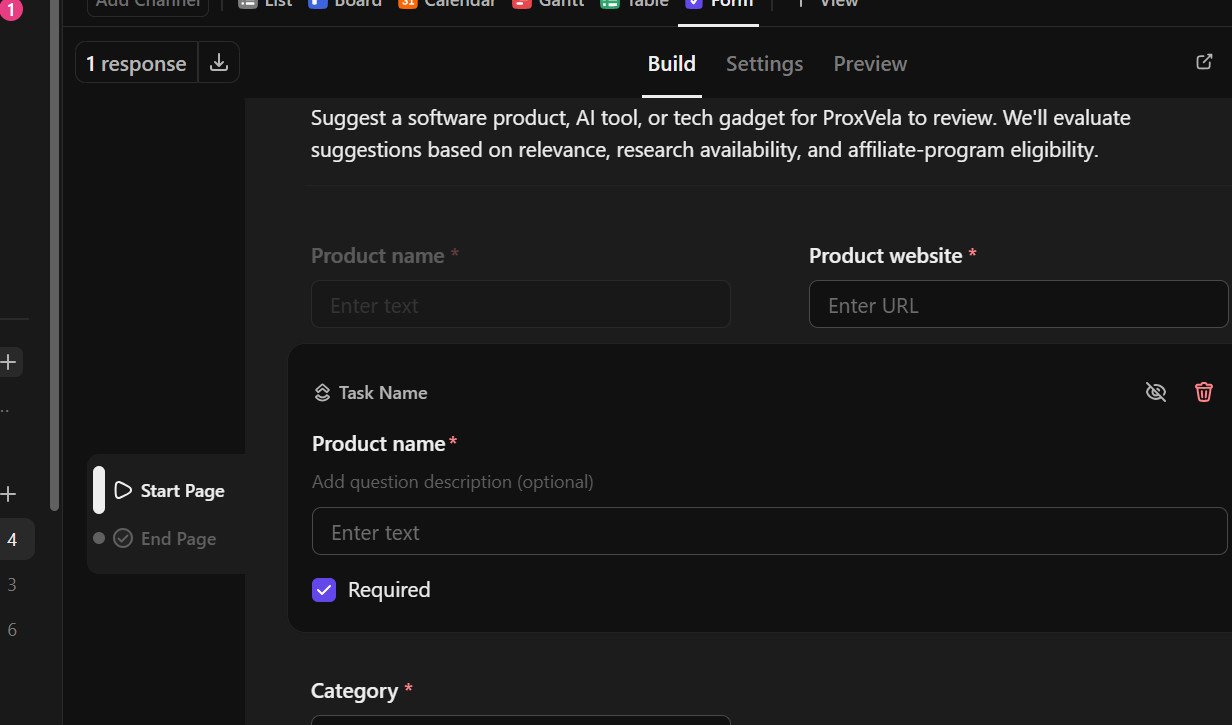
- −Form task titles require the native Task Name field, not a text custom field
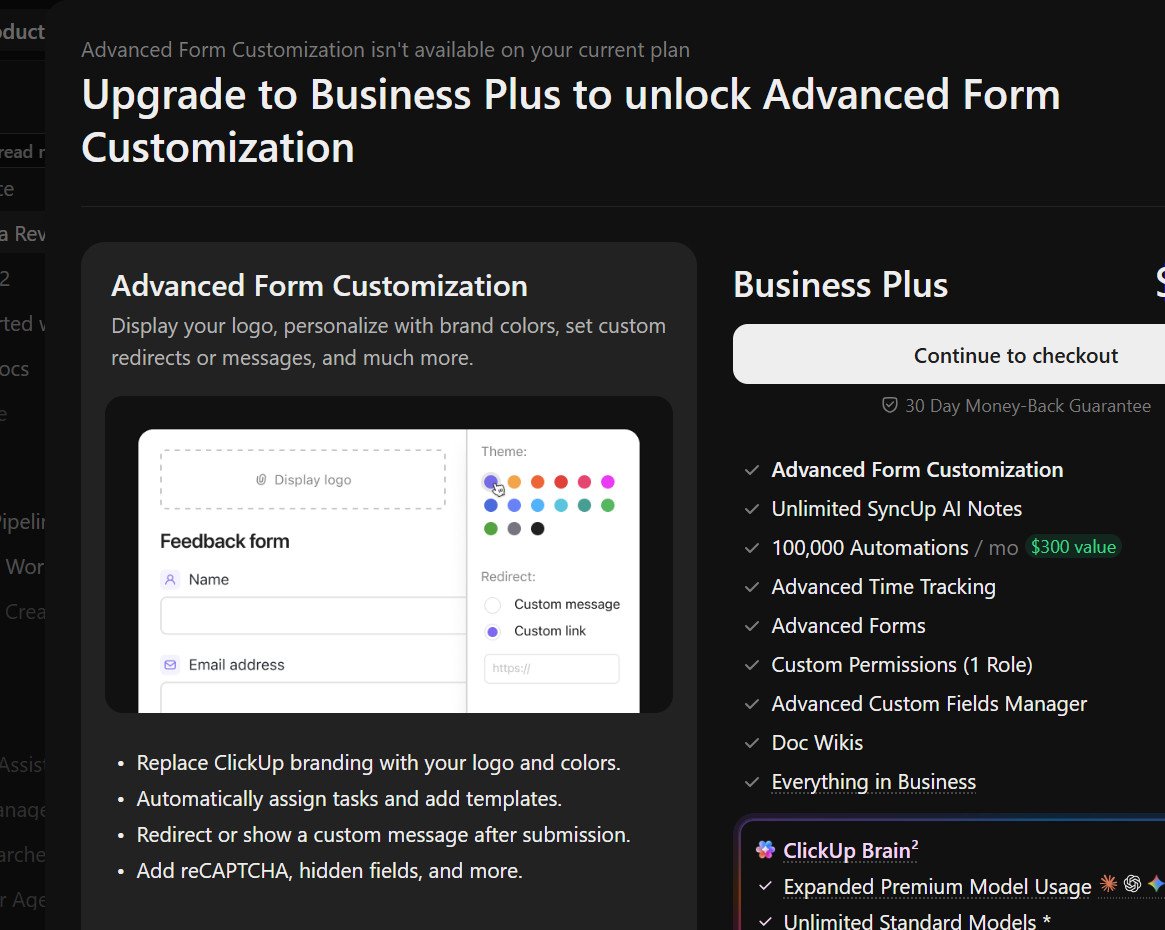
- −Advanced form layouts, branding and redirects prompted a Business Plus upgrade
- −Some dashboard cards do not support global filters
- −Account and public pricing display different plan structures
- −AI trial and credit allowances require plan-by-plan verification
- −Mobile, support and large-team performance were not tested
Testing and affiliate disclosure: ProxVela created a ClickUp Free Forever workspace and independently ran the tests in this article on September 17, 2026. ClickUp did not sponsor this review, grant paid access, or approve our conclusions. We have not included a ClickUp affiliate tracking link; the product link in the native At a Glance card leads to ClickUp’s official website. If ProxVela joins the affiliate program later, we will update the disclosure and link. Screenshots below come from our own test account. Read our review methodology and editorial policy.
ClickUp review 2026: ClickUp packs tasks, Kanban boards, Docs, forms, dashboards, automations and an AI assistant into one workspace. In this hands-on ClickUp review, we built a real ProxVela review pipeline on the Free Forever plan and tested what actually worked, what needed configuration, and where an upgrade screen interrupted us.
Our scope is deliberately specific: one workspace, a small editorial project and reproducible actions. We did not purchase a plan, invite a team to test collaboration, run a mobile-app benchmark or submit a support ticket. Results below are firsthand observations from that workflow, not claims about enterprise-scale performance.
ClickUp review 2026: overview and test setup
ClickUp is a work-management platform that organizes projects into spaces, lists and tasks, with alternative views and connected productivity tools. The appeal is having planning, execution, documents and reporting near the same task data instead of maintaining separate spreadsheets and boards.
We named our workspace ProxVela Content Production and created ProxVela Review Pipeline. The first three tasks covered researching this ClickUp review, capturing original screenshots and publishing the article. Later, a form test added two more tasks. Working with real review steps let us trace each feature to a visible result.
- Moving a task on the Kanban board changed its List-view status correctly.
- One status-change automation posted the specified comment under ClickBot.
- Brain answered four of four factual workspace questions correctly and added an actual six-item checklist.
- Forms created tasks, but the first attempt used a generic timestamp until we replaced a text custom field with the native Task Name field.
- A dashboard location filter corrected supported metrics; several template cards explicitly did not support dashboard-wide filters.
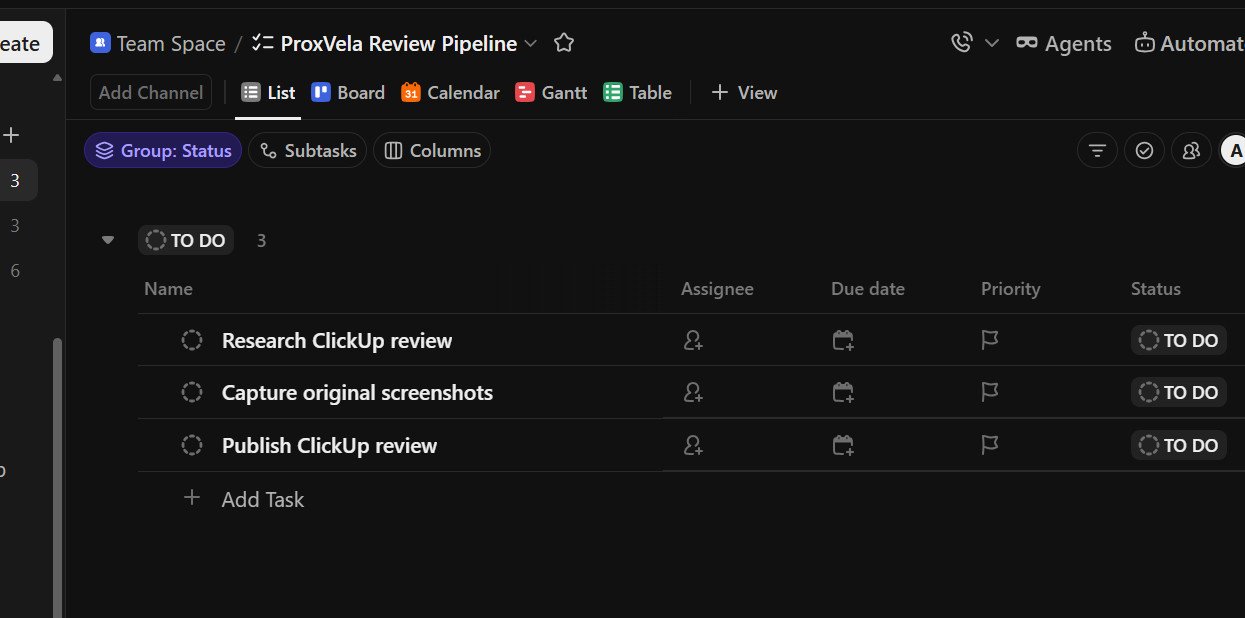
Features: what worked in the Free Forever workspace
Task management: descriptions, priority, deadlines and history
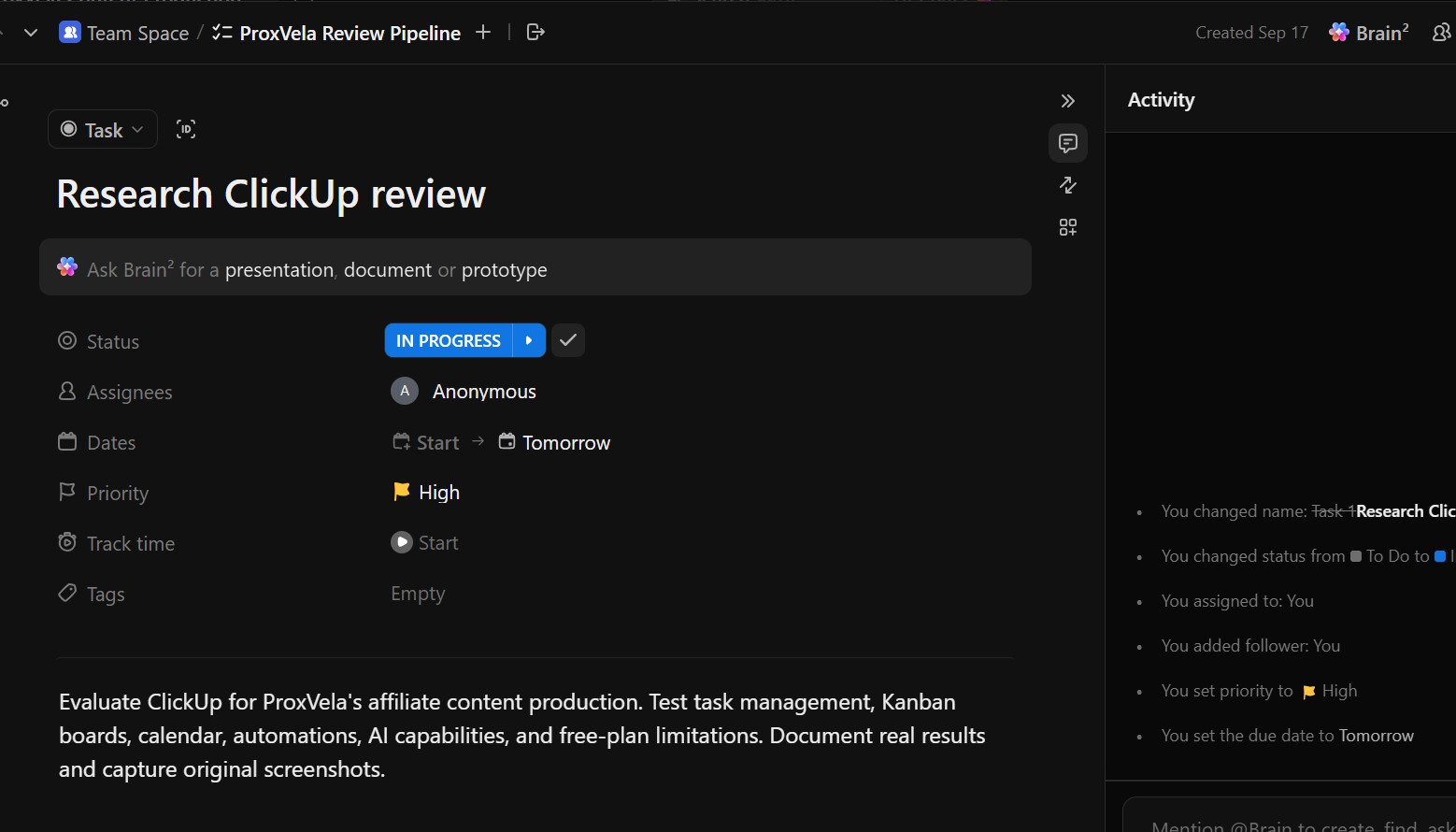
We renamed an onboarding sample list, replaced its sample tasks and opened Research ClickUp review. We added a research description, assigned it to our account, set High priority and a September 18 deadline, and kept its status In Progress. The Activity panel recorded those changes, giving us an audit trail for this small project.
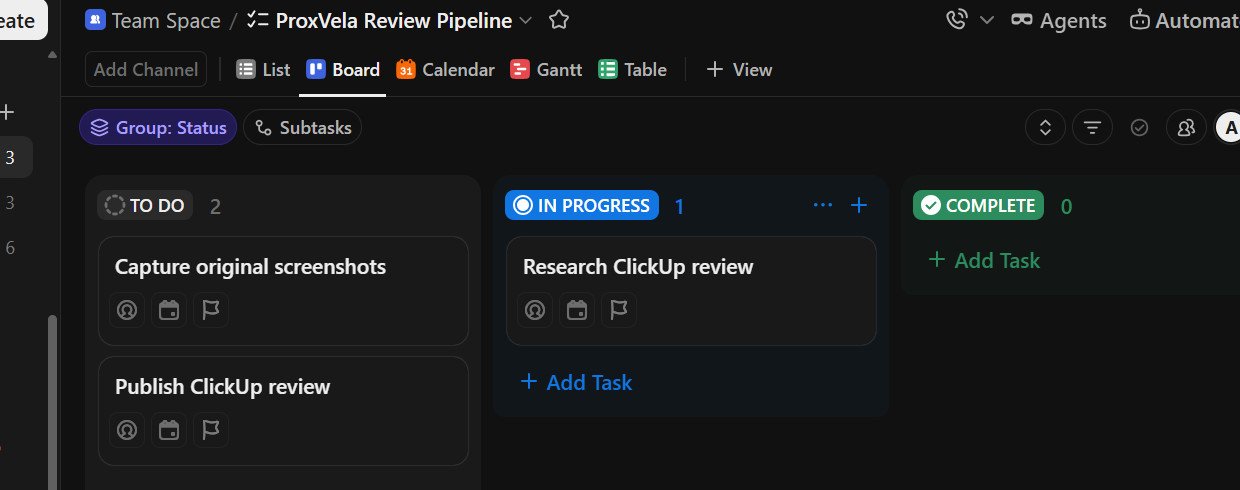
Kanban: the board and list stayed in sync
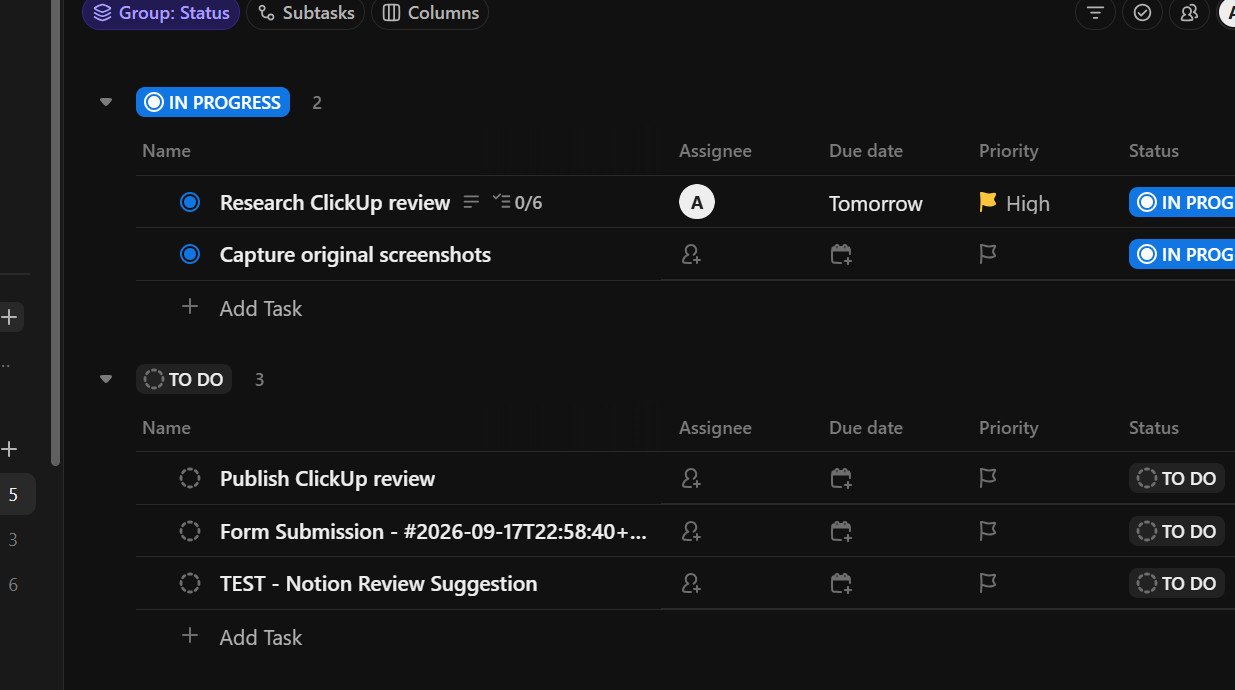
Our Board view displayed To Do, In Progress and Complete columns. We moved the research task into In Progress and returned to List view; its status and the counts matched. Subsequent screenshots also showed two In Progress tasks and one To Do task before the form submissions. No duplicate task appeared from changing views.
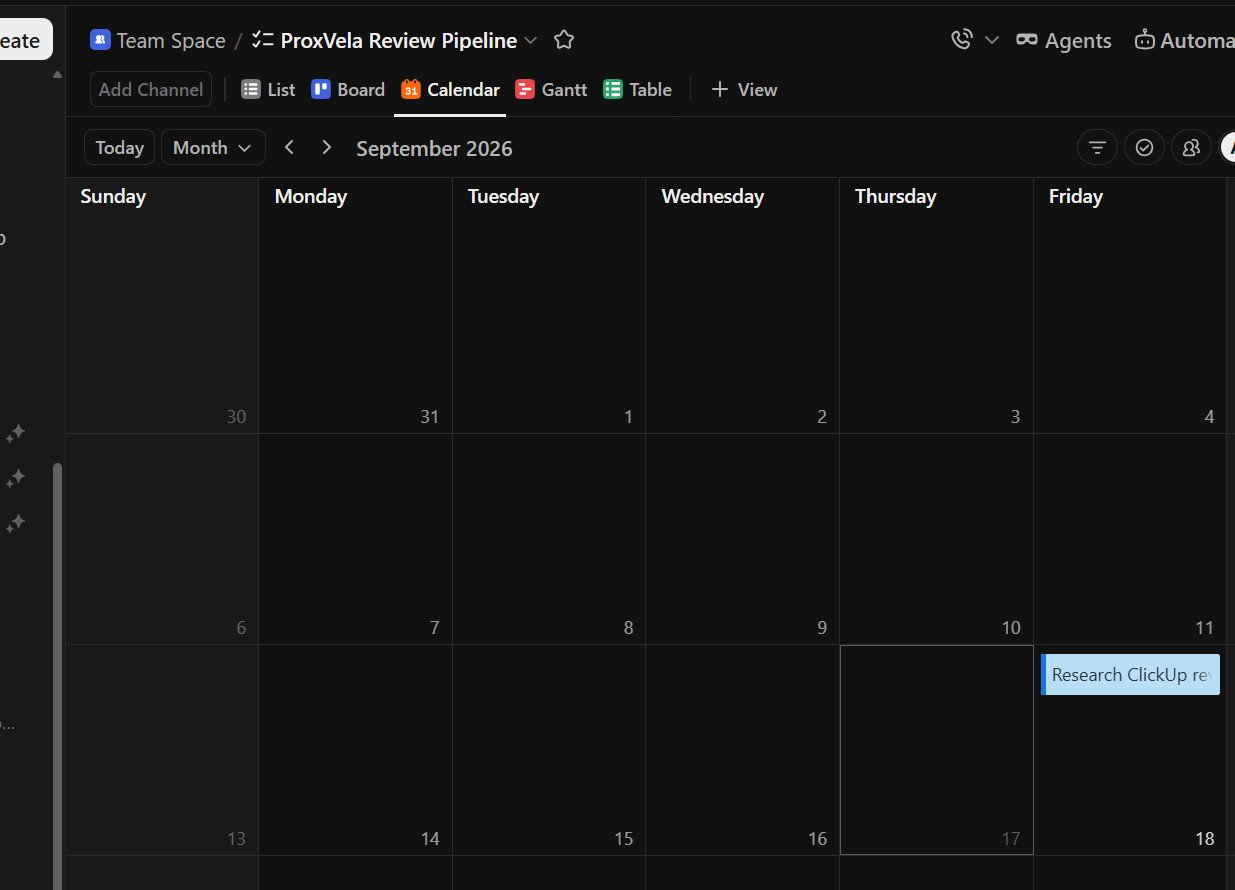
Calendar: the due date appeared on the right day
After assigning September 18 to the research task, we opened the monthly Calendar view. The task appeared on September 18; two tasks without dates were listed as Unscheduled. Unlike our earlier test of monday.com’s calendar, this ClickUp test did not require us to map a separate date column.
Automations: one real trigger, one real comment
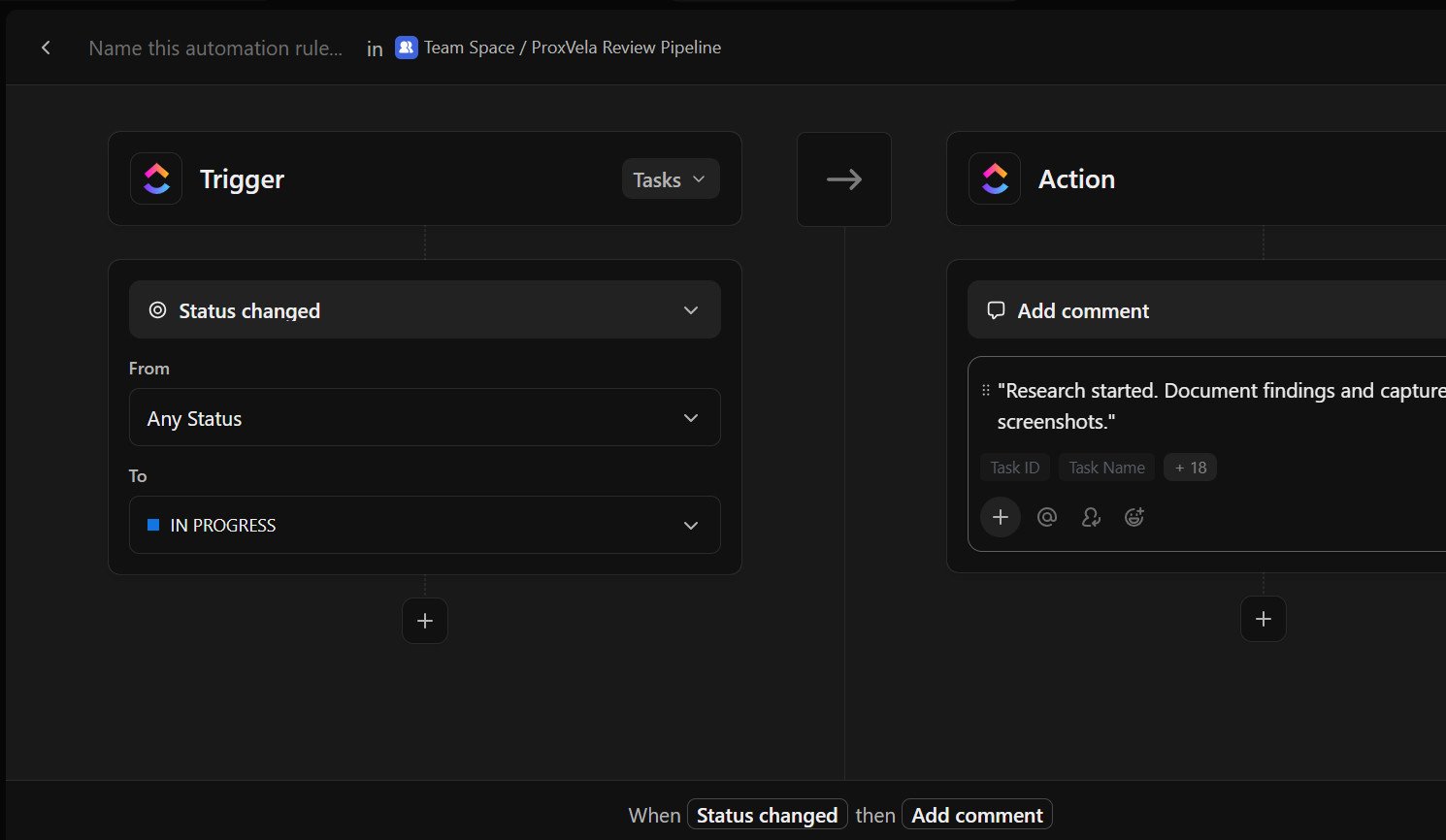
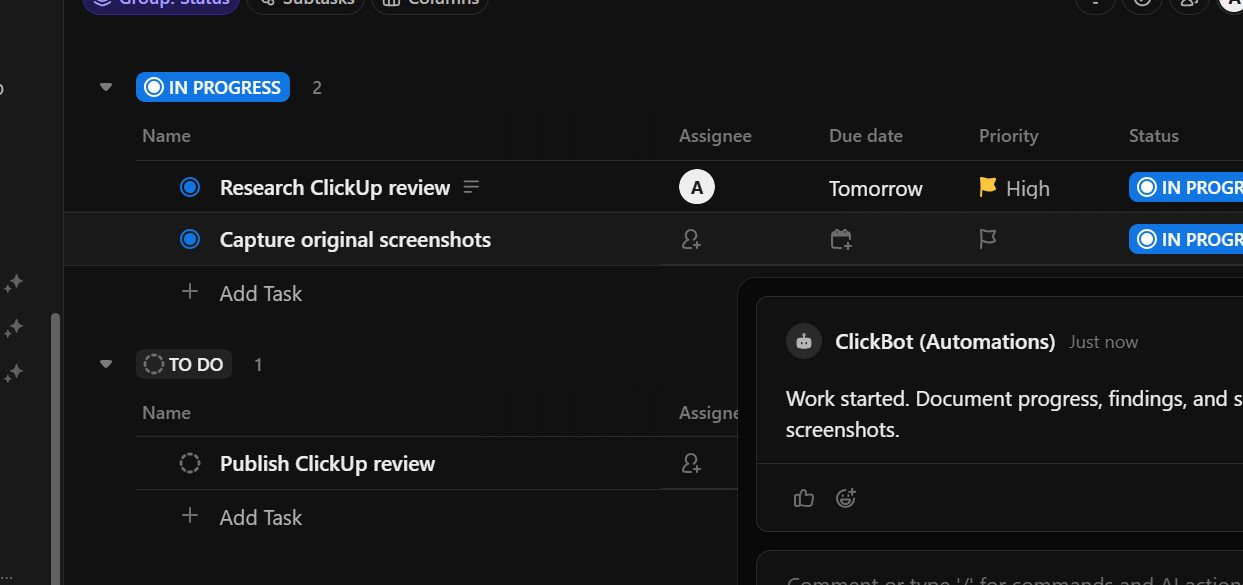
We configured the rule When status changes from any status to In Progress → add comment. The comment text was: “Work started. Document progress, findings, and supporting screenshots.” We created the rule, then moved Capture original screenshots from To Do to In Progress. ClickBot posted exactly that comment on the task.
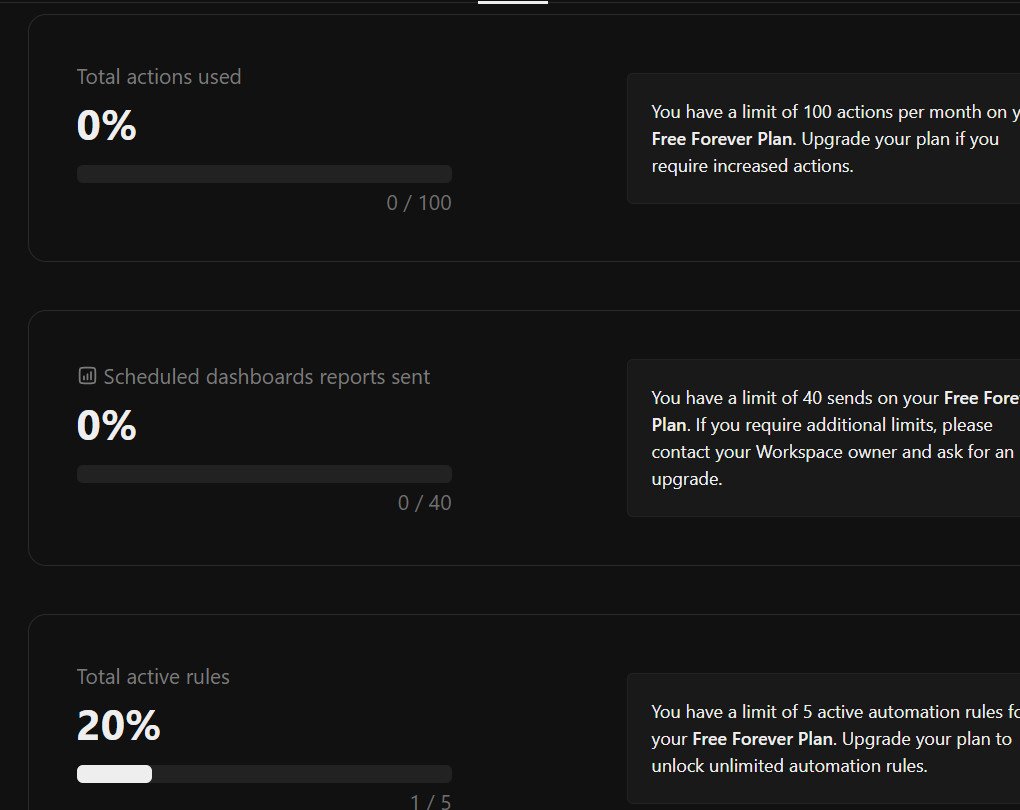
Free Forever’s Usage screen displayed a limit of five active rules and 100 actions per month, plus 40 scheduled dashboard-report sends. Right after the successful ClickBot comment, the Usage screen still showed 0/100 actions. We cannot tell from that single observation whether the counter was delayed or the action was accounted for differently, so we do not claim unlimited or unmetered automation.
Docs: research notes beside the project
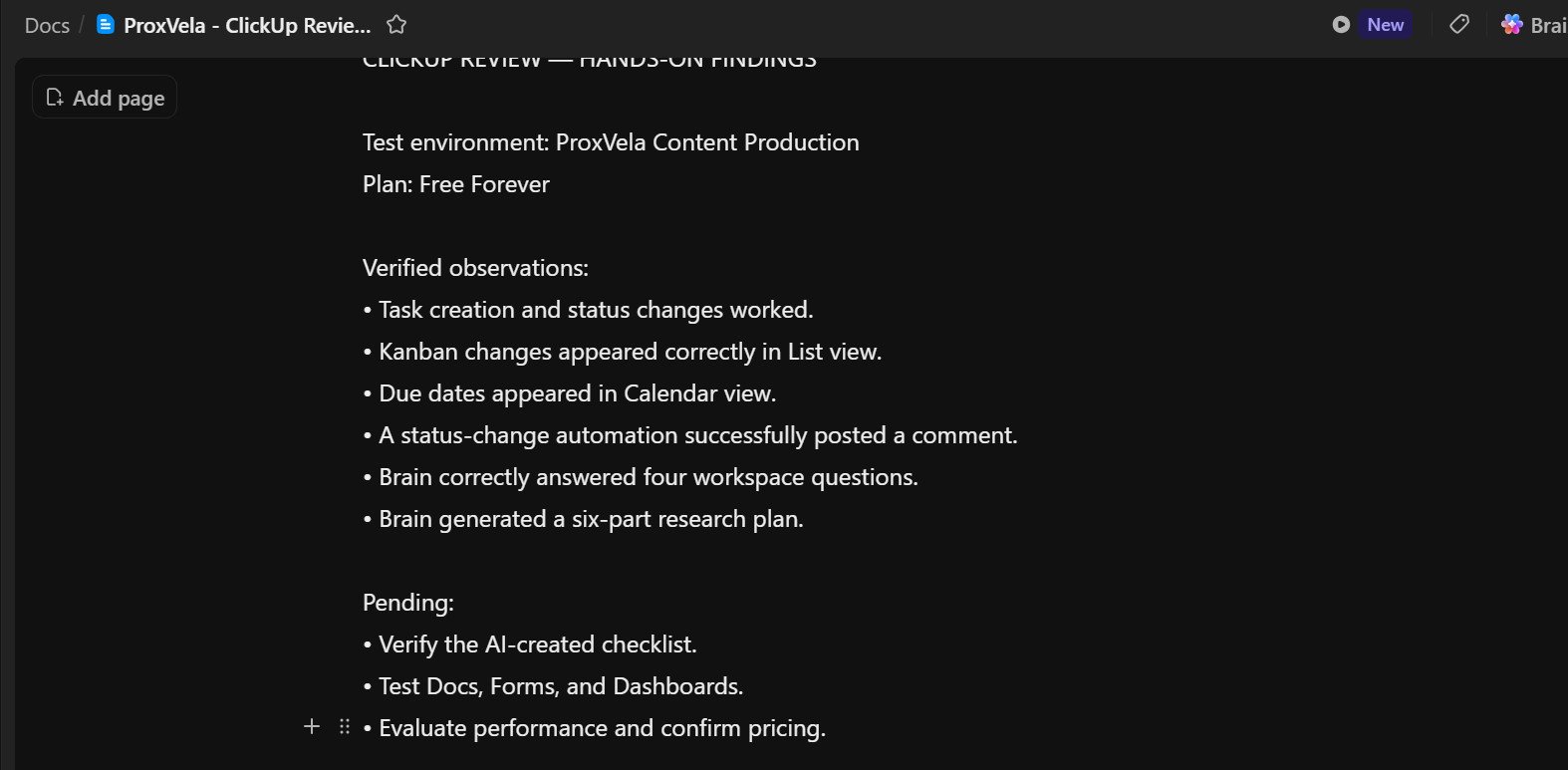
We created a document titled ProxVela – ClickUp Review Research containing the test environment, findings and outstanding work. The editor displayed the content and a last-updated time. Creation and visible content are confirmed; we did not verify a close-and-reopen save cycle, detailed revision history or multi-person editing.
Forms: useful submissions, with a mapping trap
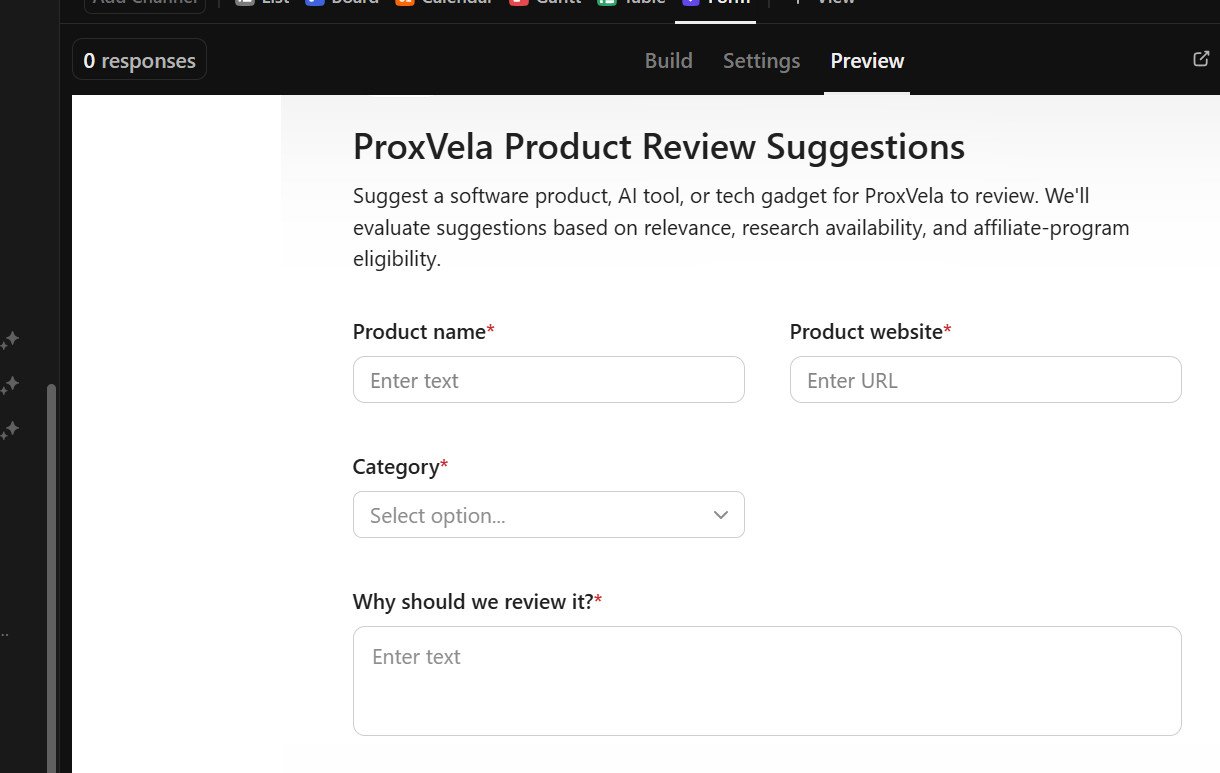
We built ProxVela Product Review Suggestions with a product name, website, category, reason for reviewing and optional notes. Its first Preview showed “Form is unavailable” while the form was unpublished; publishing resolved the message. We used a test Notion suggestion rather than publishing the form on our website.
The first submission did create a task, but its title was a generic timestamp. The reason became clear in the builder: our first Product name question was a Text Custom Field, not ClickUp’s native Task Name field. We added the native field, removed only the duplicate question from the form and submitted again. A new task appeared with the correct title, TEST – Notion Review Suggestion. The dashboard’s activity card also showed the website, category, explanation and notes being saved.
Performance and reporting: what our limited test actually shows
Dashboards needed narrower filters
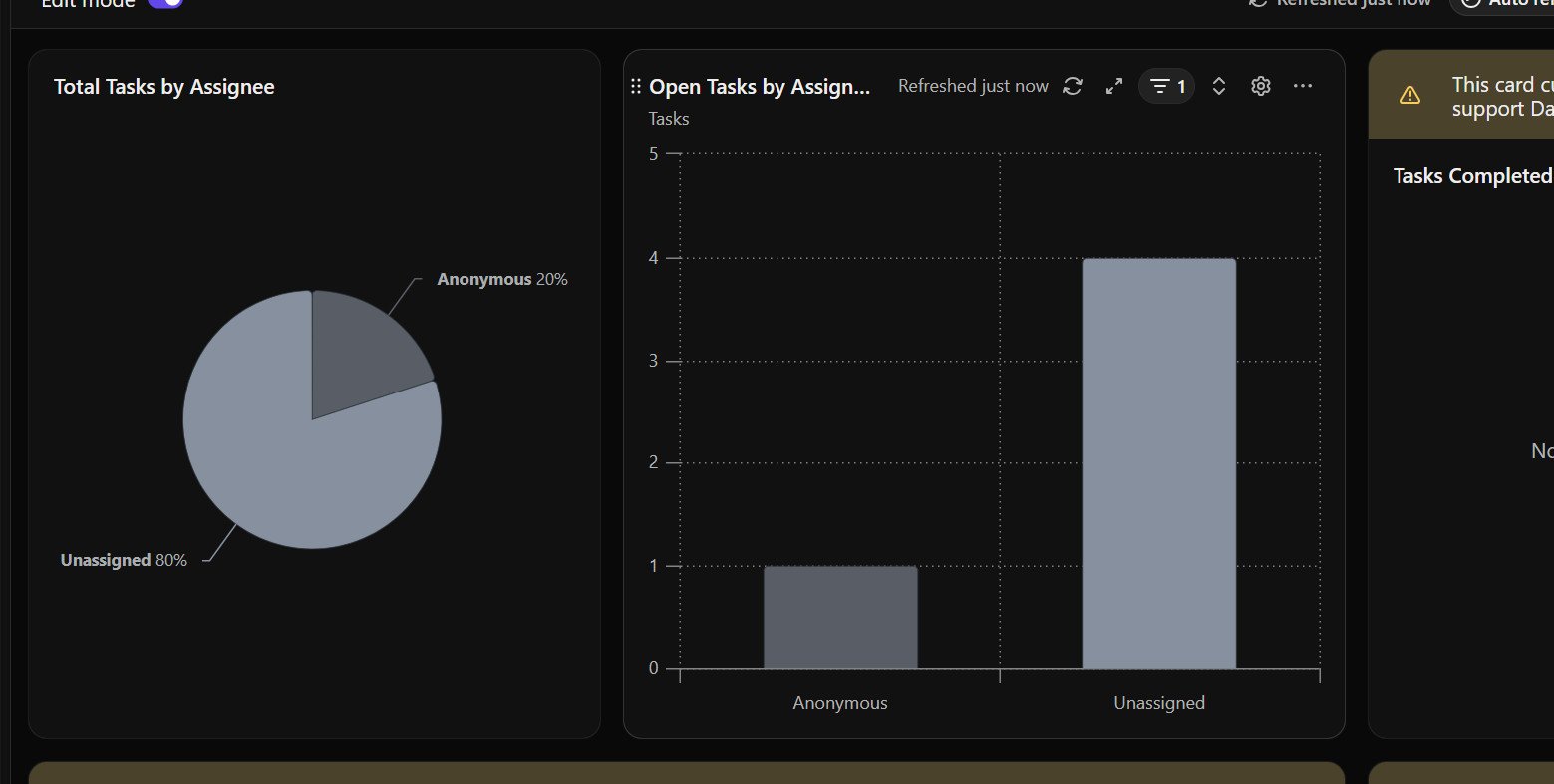
We created a Simple Dashboard. It populated an AI Executive Summary, task counts, assignee charts, a workload chart, a due-date card and activity. Initially, the In Progress card showed three tasks even though our review pipeline had two: the template was reading more than one project. After applying a location filter for ProxVela Review Pipeline only, supported cards showed two In Progress, zero Completed and four Unassigned, matching our five tasks with one assignee.
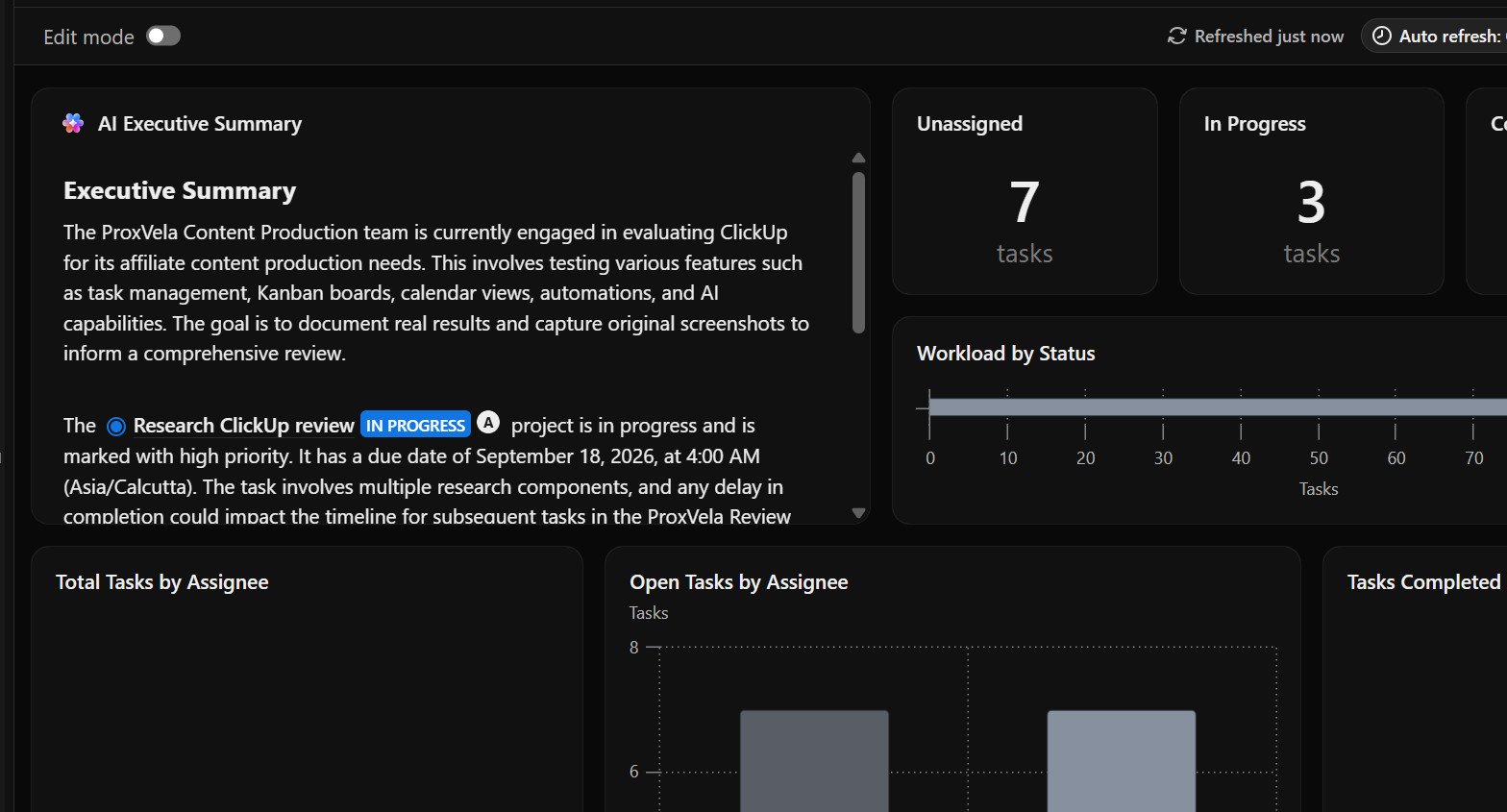
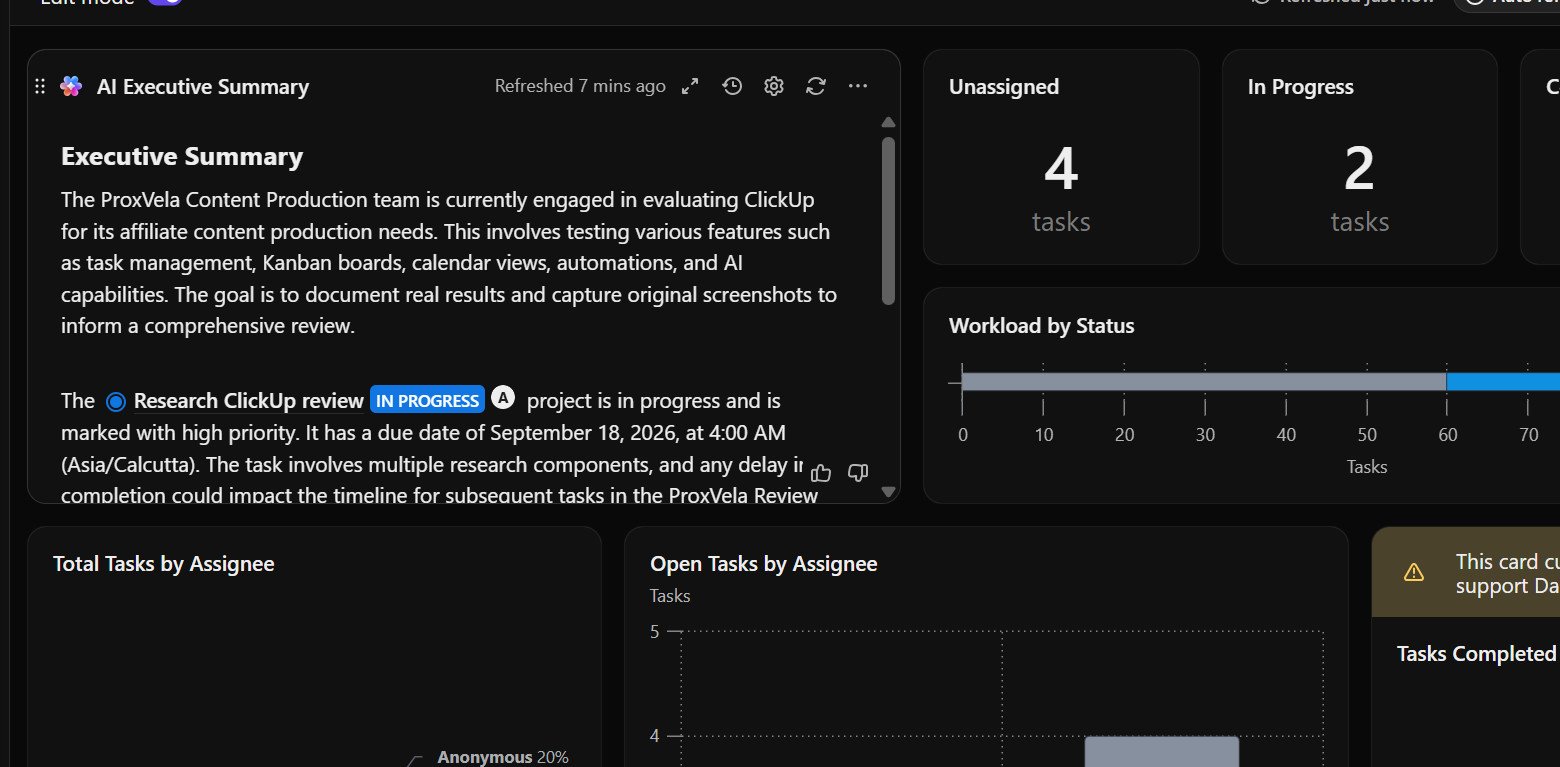
Not every card followed that filter. The due-date and completed-this-week cards displayed the warning “This card currently does not support Dashboard filters”; the due-date drill-down continued to show onboarding tasks. That means a mixed-card dashboard requires checking each card’s own scope rather than assuming that one global filter fixes everything.
The AI Executive Summary mentioned a precise 4:00 AM deadline. Our original task setup confirmed the date but not that exact time, so we would check the task’s own due-time setting before repeating the AI summary’s clock-time claim.
Responsiveness and usability
We successfully completed every core action in a desktop browser: renaming tasks, changing statuses, opening task details, creating an automation, sending form submissions and filtering dashboard metrics. The screenshots also document some setup friction: choosing the wrong field type made form task titles generic; advanced form layout prompted an upgrade; and several dashboard cards ignored dashboard-level filters.
We did not measure load times, compare browser performance, or test the mobile app. A numeric speed benchmark or claim that ClickUp is consistently fast would be unsupported by this test. The most defensible result is that the workflow was usable end-to-end, with notable configuration caveats.
ClickUp Brain: accurate on our small project, and it changed actual task data
We asked Brain four factual questions: the number of tasks, which ones were In Progress, which task was due September 18, and which had High priority. It identified all four correctly from our three-task project. That is four correct answers in one bounded test, not evidence of a general 100% accuracy rate.
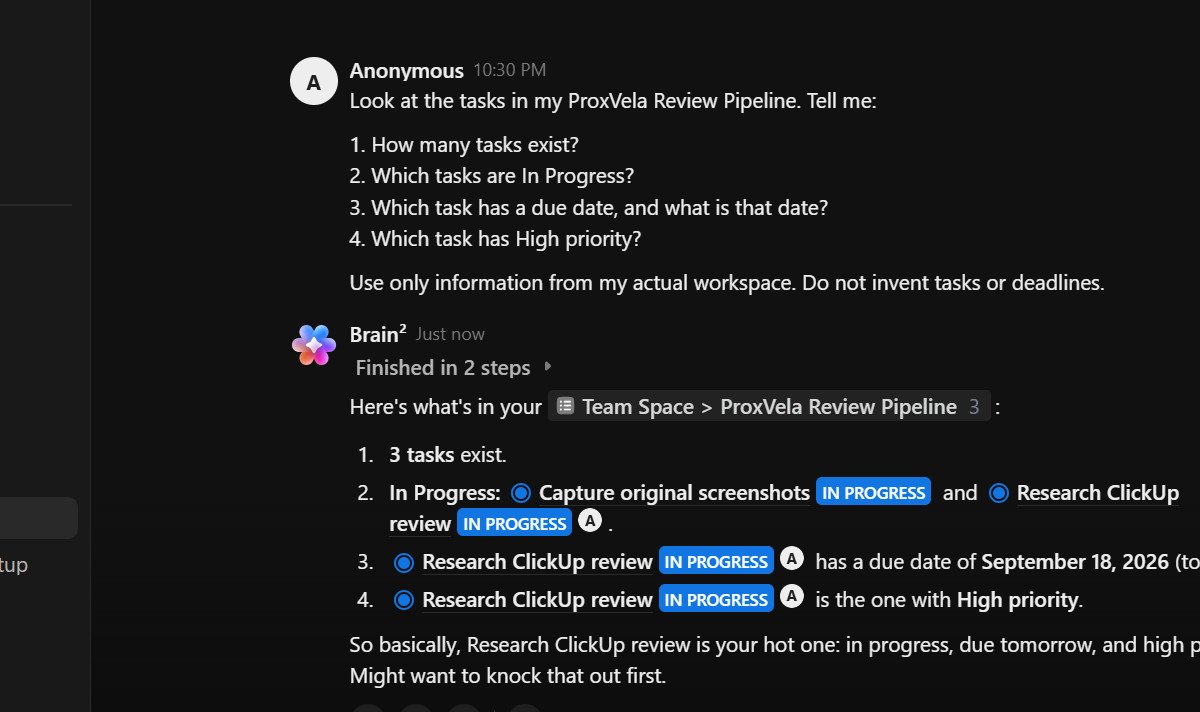
Next, we requested a six-part review-research checklist with completion criteria, while explicitly telling Brain not to modify tasks yet. It produced the plan and offered to add it. After we accepted, Brain reported creating the checklist. We opened the task: all six items were present, and the Activity panel recorded that six checklist items had been added.
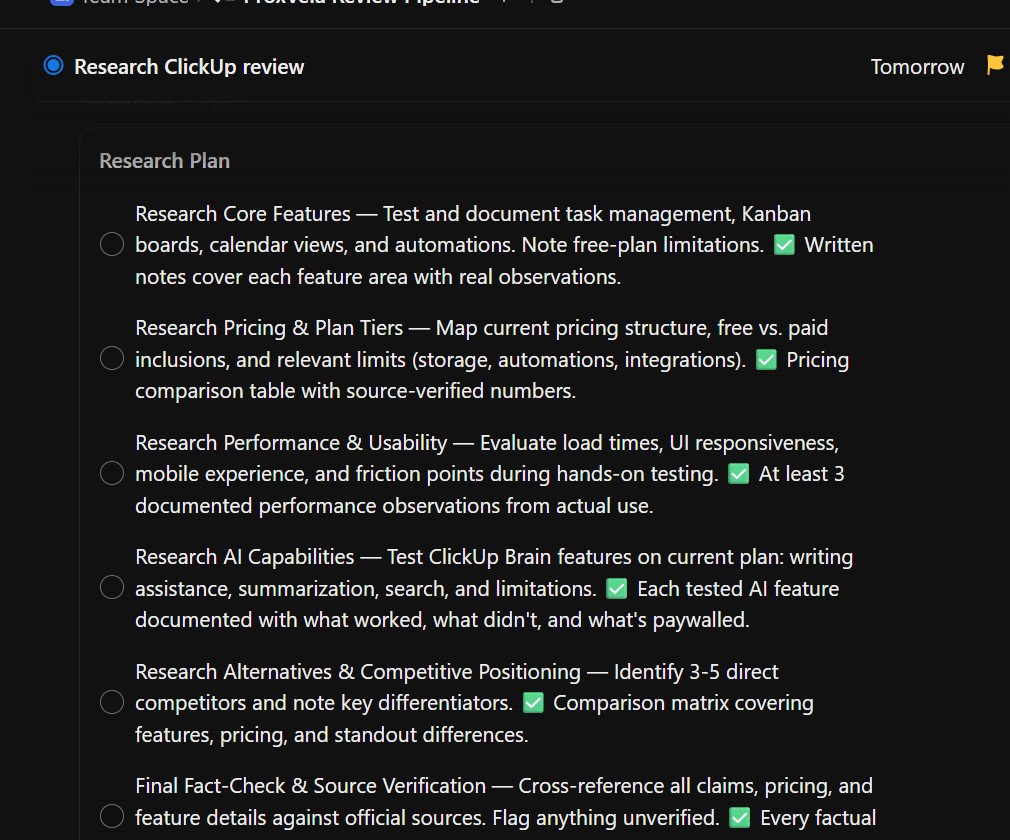
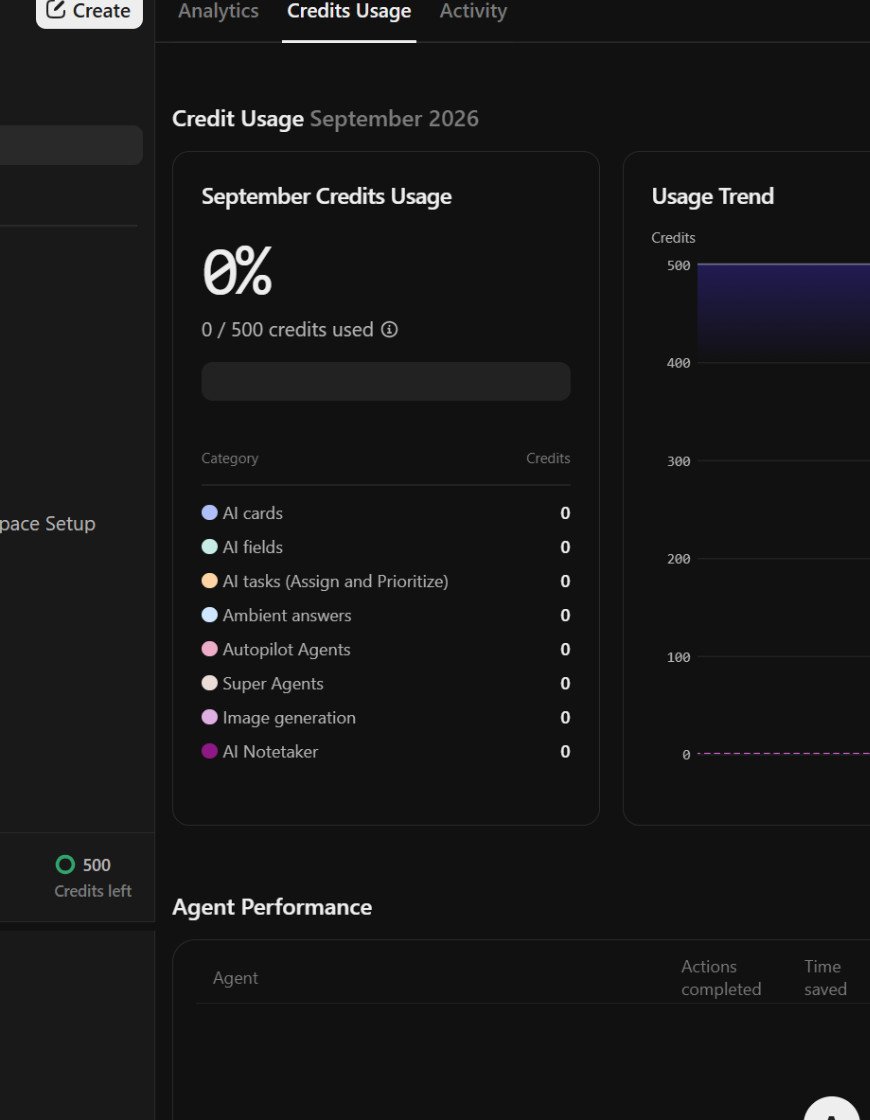
Our account’s AI Usage screen showed 500 remaining credits and a separate Brain-use meter of 1/25 before the exercise. A subsequent screenshot still displayed 500 credits and 24 Brain uses remaining. Those counters alone do not establish permanent free entitlements or exactly how these prompts were charged. ClickUp’s public AI page describes trial usage on Free Forever; check your own account before budgeting around a one-time allowance.
ClickUp pricing in 2026: two plan displays to understand
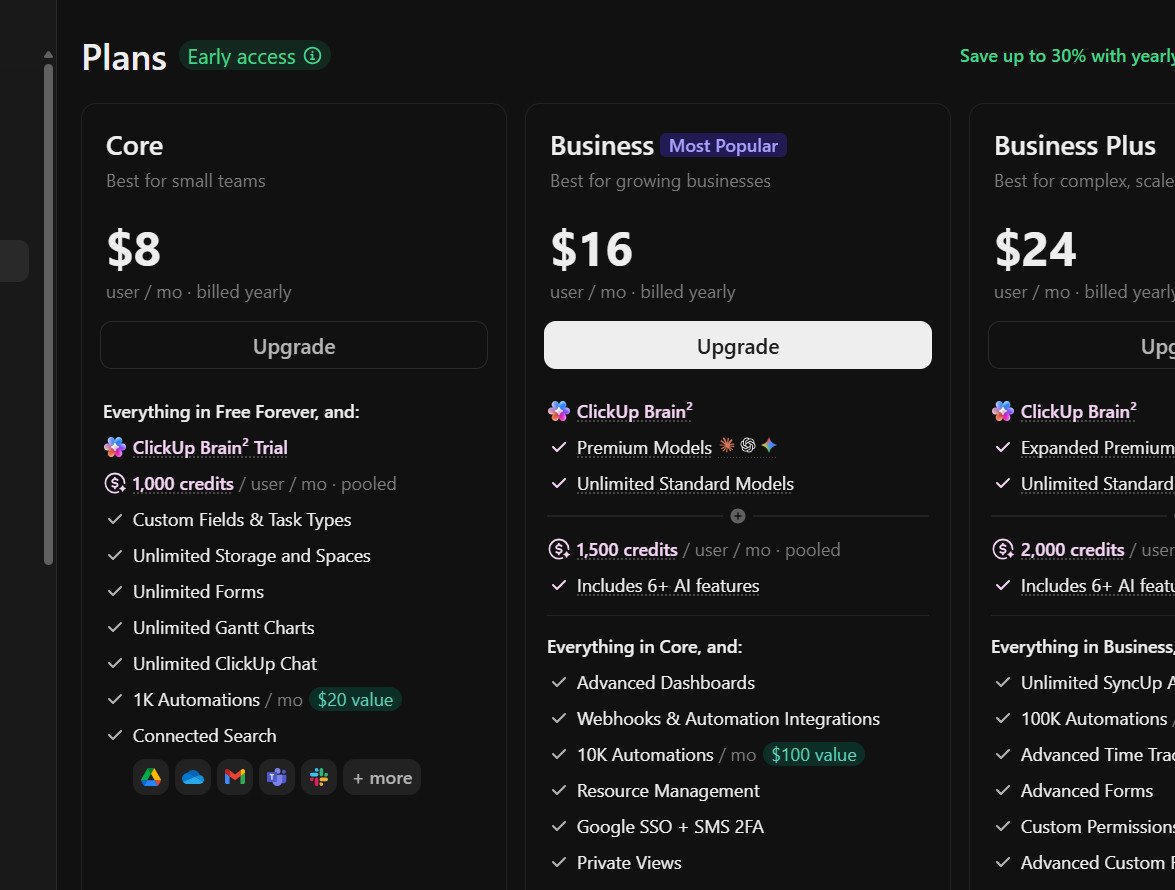
There are two live pricing presentations to distinguish. Our new workspace displayed ClickUp’s early-access Core / Business / Business Plus structure, while ClickUp’s public pricing page still presented Unlimited / Business / Enterprise when we fact-checked it. The two tables below are not a single set of interchangeable plans. Prices are shown as a per-user monthly equivalent with annual billing; checkout, region, account cohort and promotions may differ.
| Plan | Displayed price | What the account showed |
|---|---|---|
| Free Forever | $0 | Our tested plan; usage allowances apply |
| Core | $8/user/month | Unlimited storage, spaces, forms and Gantt; Brain trial and 1,000 credits/user/month shown |
| Business | $16/user/month | Advanced dashboards, integrations and 10K automations/month shown; 1,500 credits/user/month shown |
| Business Plus | $24/user/month | Advanced forms, permissions and 100K automations/month shown; 2,000 credits/user/month shown |
| Enterprise | Contact sales | Price not displayed in our screenshot |
| Plan | Advertised price | Representative inclusion |
|---|---|---|
| Free Forever | $0 | Unlimited tasks, 60 MB storage, 1 form and core views |
| Unlimited | $7/user/month | Unlimited storage, spaces and forms |
| Business | $12/user/month | Advanced dashboards, webhooks and automation integrations |
| Enterprise | Custom | Enterprise governance and advanced controls |
ClickUp’s own new-pricing guidance says the newer plans appear for new workspaces and Free Forever workspaces, among others. The public pricing page may still show the earlier structure. Confirm your exact plan, AI allowances, billing cycle and checkout price rather than combining benefits from different pricing screens.
Who is ClickUp for?
Editorial and marketing teams with connected workflows
Our project moved from task planning to Kanban, a Calendar deadline, a real status automation, a request form, a research Doc and a dashboard without leaving ClickUp. That breadth makes sense when a team needs these tools to interact, not merely coexist in separate tabs.
Small teams prepared to configure their own system
The Free Forever workspace supported a meaningful test with no card entered, but success depended on mapping the correct form field and narrowing reporting filters. Users who enjoy configuring lists and views may appreciate that control; users seeking a completely preset process should budget some setup time.
People interested in AI connected to tasks
Brain correctly interpreted our small project and later wrote six checklist items into a real task. We would still verify every consequential change and assess AI entitlement on the current account rather than assume the same usage remains available for free.
Where to be cautious
A single user with only a simple to-do list may not need ClickUp’s breadth. Public-facing forms that must match a brand or use redirects can trigger paid-plan requirements. Reporting teams should validate the scope of every dashboard card. We also have no hands-on evidence here about mobile responsiveness, customer support quality or large-team performance.
ClickUp alternatives to compare
| Product | Why a reader might compare it | Our evidence boundary |
|---|---|---|
| monday.com | Customizable work boards, project views, forms, automations and AI | See ProxVela’s separate hands-on monday.com review; plan tiers are not directly matched |
| Asana | Task, project and team planning, plus portfolio-oriented workflows | Not hands-on tested for this article |
| Notion | Connected documents, databases and knowledge-management workflows | Used only as a dummy form-submission topic; not product-tested here |
| Trello | Kanban-first project organization | Not hands-on tested for this article |
If you’re comparing ClickUp with monday.com, look at the workflows you actually need and the exact available plan rather than treating different free and trial entitlements as equivalent.
Our ClickUp review conclusion
ClickUp handled the core of our editorial workflow on Free Forever: List and Board reflected the same statuses, Calendar displayed the deadline, an automation posted its comment, Forms created tasks after we corrected the field mapping, and Brain both read and updated real workspace data. Docs and Dashboards were available, but dashboards needed careful location filtering and some template cards ignored the global filter.
The practical trade-off is configuration and entitlement clarity. We encountered both a paid design restriction and pricing screens with different plan names, while the AI and automation usage counters needed cautious interpretation. For a team that will actually use the connected features, it is worth exploring the Free Forever workspace first; for a very simple checklist, the setup overhead may be unnecessary.
Evidence-limited editorial assessment of a five-task, single-user Free Forever workflow. Core task views, automation and task-aware AI performed as expected; form configuration and dashboard filtering exposed restrictions. This is not a mobile, support, security or large-scale performance rating.
ClickUp review: frequently asked questions
Is ClickUp Free Forever really free?
Yes. We created our workspace without a payment card and tested the core workflow on Free Forever. Some features have limited usage or display a paid-plan upgrade prompt; check the exact account entitlement.
How many automations can you run on ClickUp Free Forever?
Our workspace displayed up to five active rules and 100 actions per month. We successfully triggered one comment automation, but the usage page still read zero actions immediately afterward; we do not infer how that individual execution was counted.
Can ClickUp Forms create tasks on the free plan?
Yes in our test. Two submissions became tasks. The first had a generic timestamp title because we used a Text Custom Field; the second used the native Task Name field and created the requested title. We also encountered a Business Plus prompt when trying to change the form layout.
Does ClickUp have built-in AI?
Yes. Brain answered four workspace questions correctly and created a six-item checklist in our task. The account had a limited Brain-use meter and a separate credit meter; that does not prove the same allowance is permanent for every user.
Do ClickUp dashboard filters apply to every card?
No. Our location filter fixed supported statistics, but several template cards explicitly stated that they did not support dashboard filters. Check individual card settings and data sources before using a dashboard for reporting.
How much does ClickUp cost in 2026?
Our new account showed Core $8, Business $16 and Business Plus $24 per user/month on annual billing. The separate public pricing page still advertised Unlimited $7 and Business $12 on annual billing. Verify the prices and plan features shown in your own account or checkout.
Did ProxVela test ClickUp on mobile or with a large team?
No. Our test was a single-user desktop-browser workflow. We did not benchmark mobile, test concurrent users, assess support responses or audit security.
Sources and evidence
Every hands-on observation above is drawn from our original September 17, 2026 test screenshots. Pricing and plan statements were checked against ClickUp’s own product and help pages; access and pricing can change after publication.
- ClickUp public pricing and features
- ClickUp: new plan structures and AI inclusions
- ClickUp automation rules and action limits
- ClickUp form availability and limits
- ClickUp form settings and advanced options
- ClickUp dashboard filter support
- ClickUp Brain AI prices and trial positioning
Hands-on testing: September 17, 2026 · Product facts checked: September 17, 2026 · Screenshots: original ProxVela test account · No paid subscription purchased.